
How to Check If Your CCTV Is On and Recording Audio
Learn how to tell if your CCTV camera is on and recording audio. Identify LED signs, mic features, and settings to ensure proper monitoring.
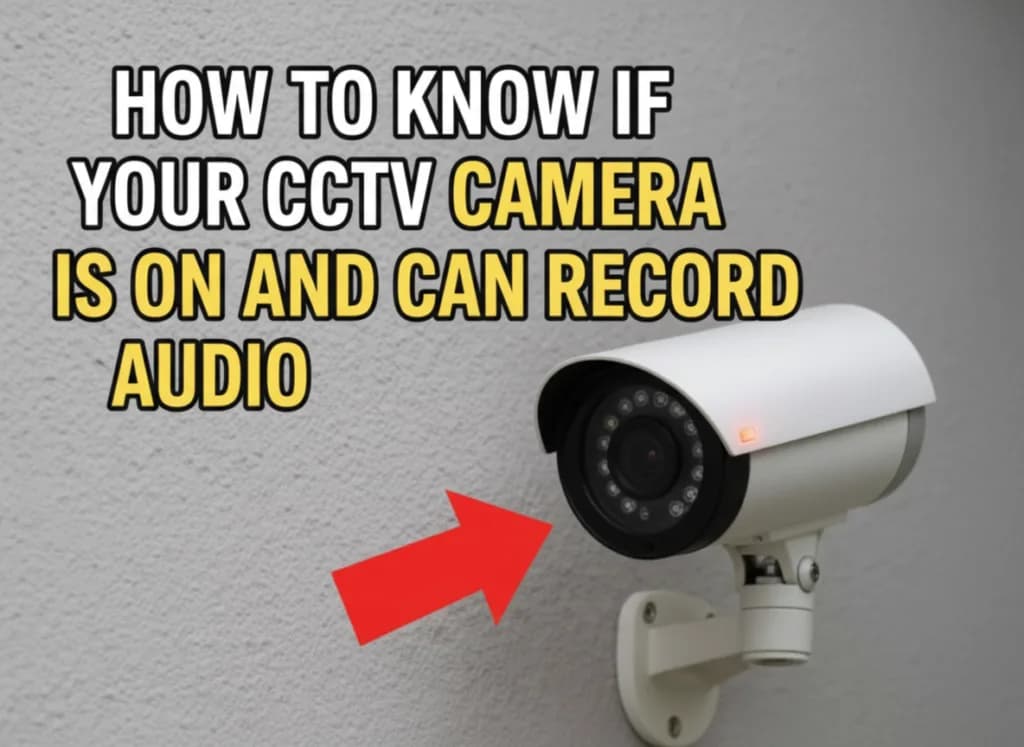
Understanding whether your CCTV camera is functioning—and whether it is recording audio— is essential for security, privacy, and legal compliance. This guide explains reliable methods to check your camera’s operational status without risking regulatory violations.
1. How to Know If Your CCTV Camera Is On (Active)
Use the following methods to confirm that your camera is powered and operating correctly:
- Check LED Indicators: A solid red or green LED usually means the camera is powered. Blinking LEDs often indicate recording or network activity.
- Check Infrared (IR) Lights: In low light, look for a faint red glow around the lens, confirming night vision and camera activity.
- Access Live View (Most Reliable): Log into your DVR/NVR or mobile app. If live video is visible, the camera is active.
- Check Network Activity (IP Cameras): Blinking LAN lights on the router or NVR indicate data transmission.
- Listen for Mechanical Sounds: PTZ or dome cameras may emit faint sounds when rotating or auto-focusing.
- Check DVR/NVR Status: Recording icons or “HDD Write” indicators confirm footage is being saved.
Note: Some professional or covert cameras allow all visual indicators to be disabled.
2. How to Know If Your CCTV Camera Can Record Audio
Not all CCTV cameras support audio recording. Use these checks to identify audio capability:
- Look for a Built-in Microphone: Check for a pinhole mic or labels such as “MIC” or “Audio”.
- Check Camera Specifications: Search the model details for “audio supported” or “two-way audio”.
- Inspect Camera Cables: Analog cameras may include a separate white RCA cable for audio.
- Check DVR/NVR Audio Ports: AUDIO IN ports indicate support for external microphones.
- Test via Mobile App: Apps like Hik-Connect or XMEye allow you to tap the speaker icon during live view to confirm audio.
3. How to Know If Your CCTV Camera Is Recording Audio Right Now
Even if your camera supports audio, recording must be enabled explicitly:
- Verify Recording Settings: Go to DVR/NVR → Channel Settings → Encode and enable “Record Audio”.
- Playback Test: Play recent footage and activate the speaker icon. If sound is present, audio recording is active.
4. Are CCTV Cameras Allowed to Record Audio?
Audio surveillance laws are typically stricter than video surveillance laws. In many regions, recording conversations without consent is illegal—especially in:
- Offices and workplaces
- Homes with domestic staff
- Retail stores and rental properties
Always follow local surveillance regulations. When in doubt, disable audio recording or consult a professional CCTV system integrator.
5. Final Tips for Optimal CCTV Performance
- Monthly Checks: Verify video and audio feeds every 30 days
- Storage Management: Ensure sufficient HDD or cloud storage
- Firmware Updates: Keep cameras and apps updated for stability
Need Help Verifying or Configuring Your CCTV System?
Ensuring your CCTV system is active, compliant, and configured correctly is critical for both security and legal protection.
At SOS Technology, we provide professional inspection, configuration, and compliance guidance for CCTV surveillance systems across residential, commercial, and industrial environments.
- Professional CCTV system audits
- Audio and video compliance checks
- Configuration, AMC, and technical support