
How to Use Presenter Mode with Barco ClickShare for Better Presentations
Learn how to use PowerPoint Presenter View with Barco ClickShare. Keep speaker notes private, deliver wireless presentations confidently, and engage your audience effectively.
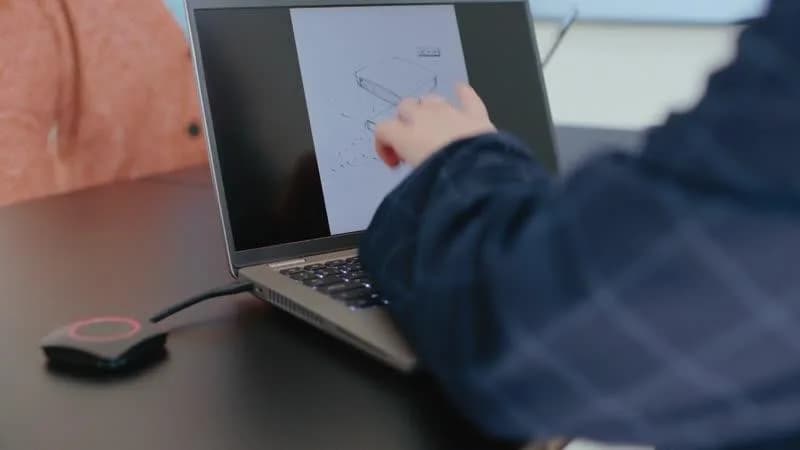
Delivering a successful presentation requires more than a polished slide deck. Great presenters maintain eye contact, manage their timing, and reference speaker notes discreetly—all without distracting their audience.
When using a traditional HDMI connection, enabling Presenter View in PowerPoint, Keynote, or Google Slides is relatively simple. However, wireless presentation systems such as Barco ClickShare require a slightly different setup because they typically mirror your laptop screen by default.
The good news is that with the correct configuration, you can enjoy all the benefits of Presenter View while presenting wirelessly. Your audience sees only the presentation slides, while you retain access to speaker notes, timers, and upcoming slide previews on your laptop. :contentReference[oaicite:0]{index=0}
At SOS Technology, we provide professional audio visual and collaboration solutions including wireless presentation systems for modern meeting rooms and conference environments across the UAE.
Understanding the Difference: Mirroring vs. Extended Desktop
Before configuring Presenter View, it's important to understand how ClickShare handles screen sharing.
Mirroring Mode
By default, ClickShare duplicates your laptop screen onto the room display. Everything visible on your laptop—including presenter notes, desktop notifications, and open applications—may also appear on the meeting room screen.
Extended Desktop Mode
Extended Desktop creates a second virtual display. Your laptop acts as one screen, while the conference room display becomes another.
This allows your presentation slides to appear on the room display while Presenter View remains visible only on your laptop.
For professional presentations, Extended Desktop Mode is the recommended configuration. :contentReference[oaicite:1]{index=1}
How to Set Up Presenter View with Barco ClickShare
Follow these steps to configure Presenter Mode correctly and deliver a seamless wireless presentation experience.
Step 1: Connect to ClickShare
Connect to the meeting room's ClickShare system using either:
- The ClickShare Button connected to your laptop's USB port
- The ClickShare Desktop App
Wait until the ClickShare connection is fully established before proceeding. :contentReference[oaicite:2]{index=2}
Step 2: Enable Extended Desktop Mode
Before sharing your presentation, configure ClickShare to use a virtual extended display.
For Windows Users
- Open the ClickShare Desktop App
- Navigate to Shared Desktop Settings
- Select Virtual Extended Desktop
- Verify that a second display appears in Windows Display Settings
For macOS Users
- Open Control Center
- Select Screen Mirroring or AirPlay
- Choose the ClickShare room display
- Select Use As Separate Display
This transforms the room display into an independent secondary monitor. :contentReference[oaicite:3]{index=3}
Step 3: Configure Your Presentation Software
Open your preferred presentation application:
- Microsoft PowerPoint
- Google Slides
- Apple Keynote
Verify that the slideshow is configured to display on the secondary monitor rather than your laptop screen.
For PowerPoint users, ensure that Use Presenter View is enabled under the Slide Show tab. :contentReference[oaicite:4]{index=4}
Step 4: Start Sharing and Launch Presenter View
Once your presentation is configured:
- Click the ClickShare Button or use the Share option in the ClickShare App
- Start your slideshow
- Presenter View should automatically appear on your laptop
If Presenter View does not appear automatically, right-click within the presentation and select Show Presenter View.
Your audience will see only the presentation slides while you maintain access to:
- Speaker notes
- Slide thumbnails
- Presentation timer
- Navigation controls
- Upcoming slide previews
Best Practices for Smooth Wireless Presentations
Use the Latest ClickShare Desktop App
Modern versions of the ClickShare Desktop App support virtual extended displays without requiring additional extension software.
Keeping the application updated ensures optimal compatibility, security, and performance. :contentReference[oaicite:5]{index=5}
Verify Display Scaling
In rooms equipped with 4K displays, speaker notes and Presenter View content may appear smaller than expected.
- Open Windows Settings
- Select System → Display
- Adjust scaling for improved readability
Check Audio Routing
If your presentation includes embedded videos or audio clips, verify that sound is routed through the room audio system instead of your laptop speakers.
- Open audio output settings
- Select the ClickShare audio device
- Test playback before presenting
Test Before Important Meetings
Always perform a quick functionality check before client presentations, executive meetings, training sessions, or boardroom discussions.
Confirm that:
- Presenter View is active
- Slides display correctly on the room screen
- Audio functions properly
- Speaker notes remain private
Why Presenter Mode Improves Presentation Quality
Presenter View allows speakers to focus on delivering their message rather than memorizing every detail.
Access to speaker notes, timers, and navigation tools helps presenters remain organized, confident, and professional throughout the presentation.
Combined with Barco ClickShare wireless presentation technology, Presenter Mode enables presenters to move freely around the room, engage directly with attendees, and create a more interactive meeting experience. :contentReference[oaicite:6]{index=6}
Conclusion
Barco ClickShare makes wireless presentations simple, but using Presenter View effectively requires configuring the system in Extended Desktop Mode rather than standard screen mirroring.
Once configured, you can present confidently with private speaker notes, professional slide delivery, and complete freedom from HDMI cables.
Whether you're leading a boardroom discussion, conducting employee training, or presenting to clients, Presenter Mode helps you deliver a polished and engaging presentation every time. :contentReference[oaicite:7]{index=7}
Enhance Meeting Room Collaboration with SOS Technology
At SOS Technology, we deliver advanced wireless presentation systems and audio visual solutions for businesses across the UAE.
- Barco ClickShare deployment and configuration
- Wireless presentation solutions
- Meeting room AV integration
- Conference room modernization
- AMC and technical support services
Contact us today to upgrade your meeting room experience.